Gallery
Showing 1531–1548 of 7103 results
-
DELL, Inspiron, Laptop Keyboard/Keypad
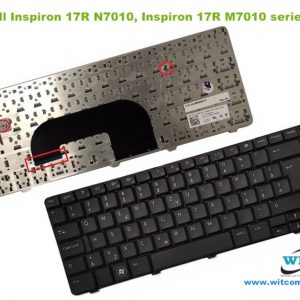
Laptop Keyboard/Keypad for Dell Inspiron 17R N7010, Inspiron 17R M7010 series, P/N: 8V8RT, 08V8RT, V104025CS, V104025CS1, AEUM9U00110
 DELL, Inspiron, Laptop Keyboard/Keypad
Laptop Keyboard/Keypad for Dell Inspiron 17R N7010, Inspiron 17R M7010 series, P/N: 8V8RT, 08V8RT, V104025CS, V104025CS1, AEUM9U00110
Technical Specifications
- Laptop Brand : Dell
- Laptop Model : Dell Inspiron 17R N7010, Inspiron 17R M7010 series
- Keyboard Part Number (DP/N): 8V8RT, 08V8RT
- Layout: US/UK (Compatible)
- Language: Germany
- Backlit: No
- Color: Black
- Track Pointer : No
- Power Button/Switch: No
- Screw: 02
- Size : Long with numeric
- Condition: Brand New & Original (QC Pass)
- Warranty: 03 Months/90 Days
- Fitting Charge : Not Applicable
***Kindly Note……….
Please firstly compare the picture with your keyboard before you place an order. Make sure the laptop model and keyboard is the right one you need. If you are still not sure after a comparison, please contact us.
Suggestion : When you want to buy a laptop keyboard , you must follow these indications:
- Laptop accurate brand, model/series name & number or keyboard P/N
- Color & layout (USA/UK)- especially Enter key
- Fixing type : easy removable or adhesiveness (palmrest based)
- Button shape (especially arrow or corner keys ) or connector cable extent & position
- Screw position, track pointer & backlit availability
- Keyboard Connecting Cable or Ribbon ending cover or cap setting up or down position (especially Asus brand)
- Including Palmrest or not ?
- Keyboard size : Long/Medium/Mini (especially with Num Lock/without Num Lock)
- Function Keys’ length & quantity (especially HP brand)
SKU: WIT12354 -
DELL, Inspiron, Laptop Keyboard/Keypad
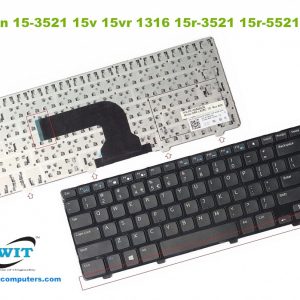
Laptop Keyboard/Keypad for Dell Inspiron 2521 3521 3537 5521 5537 15-3521 15-3537 15R-5521 15R-5537, Vostro 15-R 2125 2521 5521, Latitude 3540 series, P/N: NSK-LA0SC, 0YH3FC, PK130SZ2A00
 DELL, Inspiron, Laptop Keyboard/Keypad
Laptop Keyboard/Keypad for Dell Inspiron 2521 3521 3537 5521 5537 15-3521 15-3537 15R-5521 15R-5537, Vostro 15-R 2125 2521 5521, Latitude 3540 series, P/N: NSK-LA0SC, 0YH3FC, PK130SZ2A00
Technical Specifications
- Laptop Brand : Dell
- Laptop Model : Dell Inspiron 2521 3521 3537 5521 5537 15-3521 15-3537 15R-5521 15R-5537, Vostro 15-R 2125 2521 5521, Latitude 3540 series
- Keyboard Part Number: NSK-LA0SC, 0YH3FC, PK130SZ2A00
- Layout: US/UK (Compatible)
- Language: English (USA/UK)
- Backlit: No
- Color: Black
- Track Pointer : No
- Power Button/Switch: No
- Screw: No
- Size : Long Size with Num Lock
- Condition: Brand New & Original (QC Pass)
- Warranty: 1 Year/360 Days
- Fitting Charge : Not Applicable
***Kindly Note……….
Please firstly compare the picture with your keyboard before you place an order. Make sure the laptop model and keyboard is the right one you need. If you are still not sure after a comparison, please contact us.
Suggestion : When you want to buy a laptop keyboard , you must follow these indications:
- Laptop accurate brand, model/series name & number or keyboard P/N
- Color & layout (USA/UK)- especially Enter key
- Fixing type : easy removable or adhesiveness (palmrest based)
- Button shape (especially arrow or corner keys ) or connector cable extent & position
- Screw position, track pointer & backlit availability
- Keyboard Connecting Cable or Ribbon ending cover or cap setting up or down position (especially Asus brand)
- Including Palmrest or not ?
- Keyboard size : Long/Medium/Mini (especially with Num Lock/without Num Lock)
- Function Keys’ length & quantity (especially HP brand)
SKU: WIT12118 -
DELL, Laptop Keyboard/Keypad, Latitude
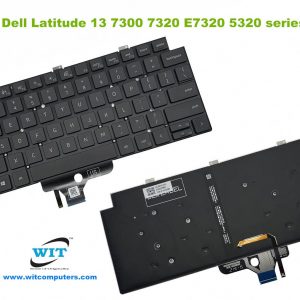
Laptop Keyboard/Keypad for Dell Latitude 13 7300 5320 5330 5340 7320 7330 2 -in-1, P133G P/N: 018YPJ, PK1330R2B00, DLM20F5
 DELL, Laptop Keyboard/Keypad, Latitude
Laptop Keyboard/Keypad for Dell Latitude 13 7300 5320 5330 5340 7320 7330 2 -in-1, P133G P/N: 018YPJ, PK1330R2B00, DLM20F5
Technical Specifications
- Laptop Brand : Dell
- Laptop Model : Dell Latitude 13 7300 7320 E7320 5320 series
- Keyboard Part Number: 018YPJ, PK1330R2B00, DLM20F5
- Type of Keyboard : Palm rest based & Built-in
- Layout: US/UK (Compatible)
- Language: English (USA/UK)
- Backlit: Yes
- Color: Black
- Track Pointer : No
- Power Button/Switch: No
- Screw: No
- Size : Medium without numeric
- Condition: Brand New & Original (QC Pass)
- Warranty: 03 Months/90 Days
- Fitting Charge : Applicable
***Kindly Note……….
Please firstly compare the picture with your keyboard before you place an order. Make sure the laptop model and keyboard is the right one you need. If you are still not sure after a comparison, please contact us.
Suggestion : When you want to buy a laptop keyboard , you must follow these indications:
- Laptop accurate brand, model/series name & number or keyboard P/N
- Color & layout (USA/UK)- especially Enter key
- Fixing type : easy removable or adhesiveness (palmrest based)
- Button shape (especially arrow or corner keys ) or connector cable extent & position
- Screw position, track pointer & backlit availability
- Keyboard Connecting Cable or Ribbon ending cover or cap setting up or down position (especially Asus brand)
- Including Palmrest or not ?
- Keyboard size : Long/Medium/Mini (especially with Num Lock/without Num Lock)
- Function Keys’ length & quantity (especially HP brand)
SKU: WIT12757 -
DELL, Laptop Keyboard/Keypad, Latitude
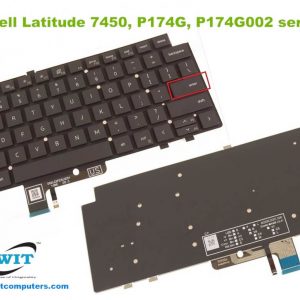
Laptop Keyboard/Keypad for Dell Latitude 7340 7440 7450 7640 7650 series (P174G, P174G002, P175G, P176G) DP/N: H3DHT, 0H3DHT
 DELL, Laptop Keyboard/Keypad, Latitude
Laptop Keyboard/Keypad for Dell Latitude 7340 7440 7450 7640 7650 series (P174G, P174G002, P175G, P176G) DP/N: H3DHT, 0H3DHT
Technical Specifications
- Laptop Brand : Dell
- Laptop Model : Dell Latitude 13 7300 7320 E7320 5320 series
- Keyboard Part Number: H3DHT, 0H3DHT
- Type of Keyboard : Palm rest based & Built-in
- Layout: US/UK (Compatible)
- Language: English (USA/UK)
- Backlit: Yes
- Color: Black
- Track Pointer : No
- Power Button/Switch: No
- Screw: No
- Size : Medium without numeric
- Condition: Brand New & Original (QC Pass)
- Warranty: 03 Months/90 Days
- Fitting Charge : Applicable
***Kindly Note……….
Please firstly compare the picture with your keyboard before you place an order. Make sure the laptop model and keyboard is the right one you need. If you are still not sure after a comparison, please contact us.
Suggestion : When you want to buy a laptop keyboard , you must follow these indications:
- Laptop accurate brand, model/series name & number or keyboard P/N
- Color & layout (USA/UK)- especially Enter key
- Fixing type : easy removable or adhesiveness (palmrest based)
- Button shape (especially arrow or corner keys ) or connector cable extent & position
- Screw position, track pointer & backlit availability
- Keyboard Connecting Cable or Ribbon ending cover or cap setting up or down position (especially Asus brand)
- Including Palmrest or not ?
- Keyboard size : Long/Medium/Mini (especially with Num Lock/without Num Lock)
- Function Keys’ length & quantity (especially HP brand)
SKU: WIT12759 -
DELL, Laptop Keyboard/Keypad, Latitude
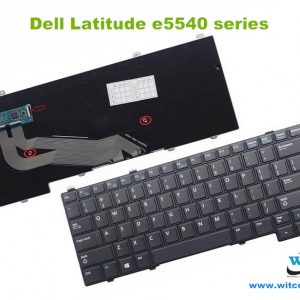
Laptop Keyboard/Keypad for Dell Latitude e5540 series, P/N: 4RNXY, 04RNXY, ND8V6, 09R8FR, PK130WR1B16, NSK-LE1BC 0D
 DELL, Laptop Keyboard/Keypad, Latitude
Laptop Keyboard/Keypad for Dell Latitude e5540 series, P/N: 4RNXY, 04RNXY, ND8V6, 09R8FR, PK130WR1B16, NSK-LE1BC 0D
Technical Specifications
- Laptop Brand : Dell
- Laptop Model : Dell Latitude e5540 series
- Keyboard Part Number (DP/N): 4RNXY, 04RNXY, ND8V6, 09R8FR, PK130WR1B16, NSK-LE1BC 0D
- Layout: US/UK (Compatible)
- Language: USA
- Backlit: No
- Color: Black
- Track Pointer : No
- Power Button/Switch: No
- Screw: 02
- Size : Long with numeric
- Condition: Brand New & Original (QC Pass)
- Warranty: 03 Months/90 Days
- Fitting Charge : Not Applicable
***Kindly Note……….
Please firstly compare the picture with your keyboard before you place an order. Make sure the laptop model and keyboard is the right one you need. If you are still not sure after a comparison, please contact us.
Suggestion : When you want to buy a laptop keyboard , you must follow these indications:
- Laptop accurate brand, model/series name & number or keyboard P/N
- Color & layout (USA/UK)- especially Enter key
- Fixing type : easy removable or adhesiveness (palmrest based)
- Button shape (especially arrow or corner keys ) or connector cable extent & position
- Screw position, track pointer & backlit availability
- Keyboard Connecting Cable or Ribbon ending cover or cap setting up or down position (especially Asus brand)
- Including Palmrest or not ?
- Keyboard size : Long/Medium/Mini (especially with Num Lock/without Num Lock)
- Function Keys’ length & quantity (especially HP brand)
SKU: WIT12359 -
DELL, Laptop Keyboard/Keypad, Precision
Laptop Keyboard/Keypad for Dell Precision M6400 M6500 with Pointer series, P/N: 0D113R, NSK-DE201, 0F759C
 DELL, Laptop Keyboard/Keypad, Precision
Laptop Keyboard/Keypad for Dell Precision M6400 M6500 with Pointer series, P/N: 0D113R, NSK-DE201, 0F759C
Technical Specifications
- Laptop Brand : Dell
- Laptop Model : Dell Precision M6400 M6500 with pointer series
- Keyboard Part Number (DP/N): 0D113R, NSK-DE201, 0F759C
- Layout: US/UK (Compatible)
- Language: German
- Backlit: Yes
- Color: Black
- Track Pointer : Yes
- Power Button/Switch: No
- Screw: No
- Size : Long with numeric
- Condition: Brand New & Original (QC Pass)
- Warranty: 03 Months/90 Days
- Fitting Charge : Not Applicable
***Kindly Note……….
Please firstly compare the picture with your keyboard before you place an order. Make sure the laptop model and keyboard is the right one you need. If you are still not sure after a comparison, please contact us.
Suggestion : When you want to buy a laptop keyboard , you must follow these indications:
- Laptop accurate brand, model/series name & number or keyboard P/N
- Color & layout (USA/UK)- especially Enter key
- Fixing type : easy removable or adhesiveness (palmrest based)
- Button shape (especially arrow or corner keys ) or connector cable extent & position
- Screw position, track pointer & backlit availability
- Keyboard Connecting Cable or Ribbon ending cover or cap setting up or down position (especially Asus brand)
- Including Palmrest or not ?
- Keyboard size : Long/Medium/Mini (especially with Num Lock/without Num Lock)
- Function Keys’ length & quantity (especially HP brand)
SKU: WIT12365 -
DELL, Laptop Keyboard/Keypad, Studio
Laptop Keyboard/Keypad for Dell Studio 17 1730 1735 1736 1737 1749 1745 series, Reg. Model: PP31L, P/N: TR334, 0TR334, NSK-DD001, CN-0TR334, WT754 01R467 0F484C 0HW332 0RK695 0RK792 0TR334 0TR483 0WT833 4H.NOJ01.001 9J.N0J82.001 9J.N0J82.00F 9J.N0J82.00G
 DELL, Laptop Keyboard/Keypad, Studio
Laptop Keyboard/Keypad for Dell Studio 17 1730 1735 1736 1737 1749 1745 series, Reg. Model: PP31L, P/N: TR334, 0TR334, NSK-DD001, CN-0TR334, WT754 01R467 0F484C 0HW332 0RK695 0RK792 0TR334 0TR483 0WT833 4H.NOJ01.001 9J.N0J82.001 9J.N0J82.00F 9J.N0J82.00G
Technical Specifications
- Laptop Brand : Dell
- Laptop Model : Dell studio 17 1735 1736 1737 1749 1745 series
- Keyboard Part Number (DP/N): TR334, 0TR334, NSK-DD001, CN-0TR334
- Layout: US/UK (Compatible)
- Language: USA
- Backlit: Yes
- Color: Black
- Track Pointer : No
- Power Button/Switch: No
- Screw: No
- Size : Long with numeric
- Condition: Brand New & Original (QC Pass)
- Warranty: 03 Months/90 Days
- Fitting Charge : Not Applicable
***Kindly Note……….
Please firstly compare the picture with your keyboard before you place an order. Make sure the laptop model and keyboard is the right one you need. If you are still not sure after a comparison, please contact us.
Suggestion : When you want to buy a laptop keyboard , you must follow these indications:
- Laptop accurate brand, model/series name & number or keyboard P/N
- Color & layout (USA/UK)- especially Enter key
- Fixing type : easy removable or adhesiveness (palmrest based)
- Button shape (especially arrow or corner keys ) or connector cable extent & position
- Screw position, track pointer & backlit availability
- Keyboard Connecting Cable or Ribbon ending cover or cap setting up or down position (especially Asus brand)
- Including Palmrest or not ?
- Keyboard size : Long/Medium/Mini (especially with Num Lock/without Num Lock)
- Function Keys’ length & quantity (especially HP brand)
SKU: WIT12361 -
DELL, Laptop Keyboard/Keypad, Studio
Laptop Keyboard/Keypad for Dell Studio 17 1745 1747 1749 series, P/N: F939P, 0F939P, V104025BS, PK130802A00
 DELL, Laptop Keyboard/Keypad, Studio
Laptop Keyboard/Keypad for Dell Studio 17 1745 1747 1749 series, P/N: F939P, 0F939P, V104025BS, PK130802A00
Technical Specifications
- Laptop Brand : Dell
- Laptop Model : Dell Studio 17 1745 1747 1749 series
- Keyboard Part Number (DP/N): F939P, 0F939P, V104025BS, PK130802A00
- Layout: US/UK (Compatible)
- Language: USA
- Backlit: No
- Color: Black
- Track Pointer : No
- Power Button/Switch: No
- Screw: No
- Size : Long with numeric
- Condition: Brand New & Original (QC Pass)
- Warranty: 03 Months/90 Days
- Fitting Charge : Not Applicable
***Kindly Note……….
Please firstly compare the picture with your keyboard before you place an order. Make sure the laptop model and keyboard is the right one you need. If you are still not sure after a comparison, please contact us.
Suggestion : When you want to buy a laptop keyboard , you must follow these indications:
- Laptop accurate brand, model/series name & number or keyboard P/N
- Color & layout (USA/UK)- especially Enter key
- Fixing type : easy removable or adhesiveness (palmrest based)
- Button shape (especially arrow or corner keys ) or connector cable extent & position
- Screw position, track pointer & backlit availability
- Keyboard Connecting Cable or Ribbon ending cover or cap setting up or down position (especially Asus brand)
- Including Palmrest or not ?
- Keyboard size : Long/Medium/Mini (especially with Num Lock/without Num Lock)
- Function Keys’ length & quantity (especially HP brand)
SKU: WIT12364 -
DELL, Laptop Keyboard/Keypad, Vostro
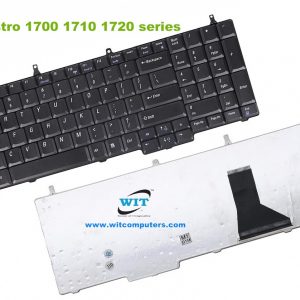
Laptop Keyboard/Keypad for Dell Vostro 1700 1710 1720 series, P/N: J485C, 0J485C, V081702AS, PP36X
 DELL, Laptop Keyboard/Keypad, Vostro
Laptop Keyboard/Keypad for Dell Vostro 1700 1710 1720 series, P/N: J485C, 0J485C, V081702AS, PP36X
Technical Specifications
- Laptop Brand : Dell
- Laptop Model : Dell Vostro 1700 1710 1720 series
- Keyboard Part Number (DP/N): J485C, 0J485C, V081702AS
- Layout: US/UK (Compatible)
- Language: USA
- Backlit: No
- Color: Black
- Track Pointer : No
- Power Button/Switch: No
- Screw: No
- Size : Long with numeric
- Condition: Brand New & Original (QC Pass)
- Warranty: 03 Months/90 Days
- Fitting Charge : Not Applicable
***Kindly Note……….
Please firstly compare the picture with your keyboard before you place an order. Make sure the laptop model and keyboard is the right one you need. If you are still not sure after a comparison, please contact us.
Suggestion : When you want to buy a laptop keyboard , you must follow these indications:
- Laptop accurate brand, model/series name & number or keyboard P/N
- Color & layout (USA/UK)- especially Enter key
- Fixing type : easy removable or adhesiveness (palmrest based)
- Button shape (especially arrow or corner keys ) or connector cable extent & position
- Screw position, track pointer & backlit availability
- Keyboard Connecting Cable or Ribbon ending cover or cap setting up or down position (especially Asus brand)
- Including Palmrest or not ?
- Keyboard size : Long/Medium/Mini (especially with Num Lock/without Num Lock)
- Function Keys’ length & quantity (especially HP brand)
SKU: WIT12363 -
DELL, Laptop Keyboard/Keypad, XPS
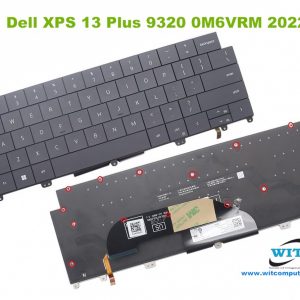
Laptop Keyboard/Keypad for Dell XPS 13 Plus 9320 0M6VRM 2022, P/N: 0M6VRM M6VRM PK133OM1B01 SG-B1211-XUA
 DELL, Laptop Keyboard/Keypad, XPS
Laptop Keyboard/Keypad for Dell XPS 13 Plus 9320 0M6VRM 2022, P/N: 0M6VRM M6VRM PK133OM1B01 SG-B1211-XUA
Technical Specifications
- Laptop Brand : Dell
- Laptop Model : Dell XPS 13 Plus 9320 0M6VRM 2022 series
- Keyboard Part Number: 0M6VRM
- Type of Keyboard : Palm rest based & Built-in
- Layout: US only
- Language: English (USA/UK)
- Backlit: Yes
- Color: Black
- Track Pointer : No
- Power Button/Switch: No
- Screw Points: 17
- Size : Medium without numeric
- Condition: Brand New & Original (QC Pass)
- Warranty: 03 Months/90 Days
- Fitting Charge : Applicable
***Kindly Note……….
Please firstly compare the picture with your keyboard before you place an order. Make sure the laptop model and keyboard is the right one you need. If you are still not sure after a comparison, please contact us.
Suggestion : When you want to buy a laptop keyboard , you must follow these indications:
- Laptop accurate brand, model/series name & number or keyboard P/N
- Color & layout (USA/UK)- especially Enter key
- Fixing type : easy removable or adhesiveness (palmrest based)
- Button shape (especially arrow or corner keys ) or connector cable extent & position
- Screw position, track pointer & backlit availability
- Keyboard Connecting Cable or Ribbon ending cover or cap setting up or down position (especially Asus brand)
- Including Palmrest or not ?
- Keyboard size : Long/Medium/Mini (especially with Num Lock/without Num Lock)
- Function Keys’ length & quantity (especially HP brand)
SKU: WIT12340 -
Fujitsu, Laptop Keyboard/Keypad, Lifebook
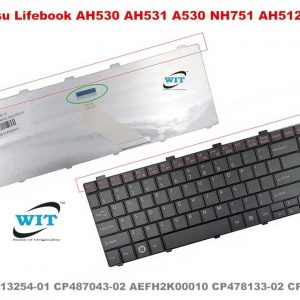
Laptop Keyboard/Keypad for Fujitsu Lifebook AH530 A530 A531 AH531 NH751 AH502 series, P/N: CP515905-01, MP-24AA3US-D853, CP513254-01 CP487043-02 AEFH2K00010 CP478133-02 CP487051-02
 Fujitsu, Laptop Keyboard/Keypad, Lifebook
Laptop Keyboard/Keypad for Fujitsu Lifebook AH530 A530 A531 AH531 NH751 AH502 series, P/N: CP515905-01, MP-24AA3US-D853, CP513254-01 CP487043-02 AEFH2K00010 CP478133-02 CP487051-02
Technical Specifications
- Laptop Brand : Fujitsu
- Laptop Model : Lifebook AH530 A530 A531 AH531 NH751 AH502 series
- Keyboard Part Number: CP515905-01, MP-24AA3US-D853
- Layout: US/UK (Compatible)
- Language: English (USA/UK)
- Backlit: No
- Color: Black
- Track Pointer : No
- Power Button/Switch: No
- Screw: No
- Size : Long with NumLock
- Condition: Brand New & Original (QC Pass)
- Warranty: 1 Year (360 Days)
***Kindly Note……….
Please firstly compare the picture with your keyboard before you place an order. Make sure the laptop model and keyboard is the right one you need. If you are still not sure after a comparison, please contact us.
Suggestion : When you want to buy a laptop keyboard , you must follow these indications:
- Laptop accurate brand, model/series name & number or keyboard P/N
- Color & layout (USA/UK)- especially Enter key
- Fixing type : easy removable or adhesiveness (palmrest based)
- Button shape (especially arrow or corner keys ) or connector cable extent & position
- Screw position, track pointer & backlit availability
- Keyboard Connecting Cable or Ribbon ending cover or cap setting up or down position (especially Asus brand)
- Including Palmrest or not ?
- Keyboard size : Long/Medium/Mini (especially with Num Lock/without Num Lock)
- Function Keys’ length & quantity (especially HP brand)
SKU: WIT11180 -
Fujitsu, Laptop Keyboard/Keypad, Lifebook
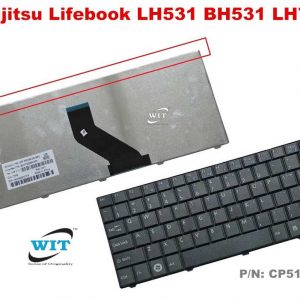
Laptop Keyboard/Keypad for Fujitsu Lifebook LH531, Lifebook LH531G, Lifebook BH531, Lifebook LH701 series, P/N: CP516131-01
 Fujitsu, Laptop Keyboard/Keypad, Lifebook
Laptop Keyboard/Keypad for Fujitsu Lifebook LH531, Lifebook LH531G, Lifebook BH531, Lifebook LH701 series, P/N: CP516131-01
Technical Specifications
- Laptop Brand : Fujitsu
- Laptop Model : FUJITSU Lifebook LH531 BH531 LH701 Series
- Keyboard Part Number: CP516131-01
- Layout: US/UK (Compatible)
- Language: English (USA/UK)
- Backlit: No
- Color: Black
- Track Pointer : No
- Power Button/Switch: No
- Screw: No
- Size : Medium
- Condition: Brand New & Original (QC Pass)
- Warranty: 1 Year (360 Days)
***Kindly Note……….
Please firstly compare the picture with your keyboard before you place an order. Make sure the laptop model and keyboard is the right one you need. If you are still not sure after a comparison, please contact us.
Suggestion : When you want to buy a laptop keyboard , you must follow these indications:
- Laptop accurate brand, model/series name & number or keyboard P/N
- Color & layout (USA/UK)- especially Enter key
- Fixing type : easy removable or adhesiveness (palmrest based)
- Button shape (especially arrow or corner keys ) or connector cable extent & position
- Screw position, track pointer & backlit availability
- Keyboard Connecting Cable or Ribbon ending cover or cap setting up or down position (especially Asus brand)
- Including Palmrest or not ?
- Keyboard size : Long/Medium/Mini (especially with Num Lock/without Num Lock)
- Function Keys’ length & quantity (especially HP brand)
SKU: WIT11137 -
Fujitsu, Laptop Keyboard/Keypad, Lifebook
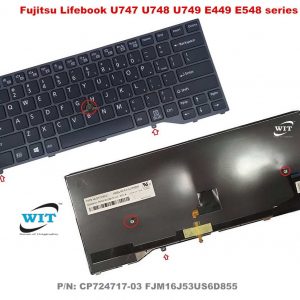
Laptop Keyboard/Keypad for Fujitsu Lifebook U747 U748 U749 E449 E548 series, P/N: CP724717-03 FJM16J53US6D855
 Fujitsu, Laptop Keyboard/Keypad, Lifebook
Laptop Keyboard/Keypad for Fujitsu Lifebook U747 U748 U749 E449 E548 series, P/N: CP724717-03 FJM16J53US6D855
Technical Specifications
- Laptop Brand : Fujitsu
- Laptop Model : Fujitsu Lifebook U747 U748 U749 E449 E548 Series
- Keyboard Part Number: CP724717-03, FJM16J53US6D855
- Layout: US/UK (Compatible)
- Language: English (USA/UK)
- Backlit: No
- Color: Black
- Track Pointer : Yes
- Power Button/Switch: No
- Screw: 02
- Size : Medium
- Condition: Brand New & Original (QC Pass)
- Warranty: 03 Months/90 days
***Kindly Note……….
Please firstly compare the picture with your keyboard before you place an order. Make sure the laptop model and keyboard is the right one you need. If you are still not sure after a comparison, please contact us.
Suggestion : When you want to buy a laptop keyboard , you must follow these indications:
- Laptop accurate brand, model/series name & number or keyboard P/N
- Color & layout (USA/UK)- especially Enter key
- Fixing type : easy removable or adhesiveness (palmrest based)
- Button shape (especially arrow or corner keys ) or connector cable extent & position
- Screw position, track pointer & backlit availability
- Keyboard Connecting Cable or Ribbon ending cover or cap setting up or down position (especially Asus brand)
- Including Palmrest or not ?
- Keyboard size : Long/Medium/Mini (especially with Num Lock/without Num Lock)
- Function Keys’ length & quantity (especially HP brand)
SKU: WIT11179 -
EliteBook, HP-Compaq, Laptop Keyboard/Keypad
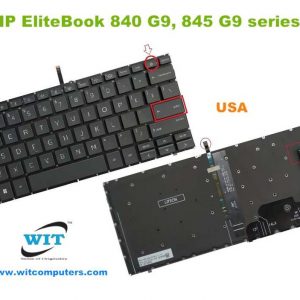
Laptop Keyboard/Keypad for HP EliteBook 830 G9, EliteBook 840-G9, EliteBook 845-G9 series, P/N: M93407-001
 EliteBook, HP-Compaq, Laptop Keyboard/Keypad
Laptop Keyboard/Keypad for HP EliteBook 830 G9, EliteBook 840-G9, EliteBook 845-G9 series, P/N: M93407-001
Technical Specifications
- Laptop Brand : HP
- Laptop Model : HP EliteBook 830 G9 840 G9 845 G9 series
- Layout: US/UK (Please select the layout options before purchase)
- Language: English (USA/UK)
- Backlit: Yes
- Color: Black
- Track Pointer : No
- Power Button/Switch: Yes
- Screw: No
- Size : Medium
- Condition: Brand New & Original (QC Pass)
- Warranty: 03 Months (90 Days)
- Fitting Charge : Applicable
***Kindly Note……….
Please firstly compare the picture with your keyboard before you place an order. Make sure the laptop model and keyboard is the right one you need. If you are still not sure after a comparison, please contact us.
Suggestion : When you want to buy a laptop keyboard , you must follow these indications:
- Laptop accurate brand, model/series name & number or keyboard P/N
- Color & layout (USA/UK)- especially Enter key
- Fixing type : easy removable or adhesiveness (palmrest based)
- Button shape (especially arrow or corner keys ) or connector cable extent & position
- Screw position, track pointer & backlit availability
- Keyboard Connecting Cable or Ribbon ending cover or cap setting up or down position (especially Asus brand)
- Including Palmrest or not ?
- Keyboard size : Long/Medium/Mini (especially with Num Lock/without Num Lock)
- Function Keys’ length & quantity (especially HP brand)
SKU: WIT11696 -
EliteBook, HP-Compaq, Laptop Keyboard/Keypad
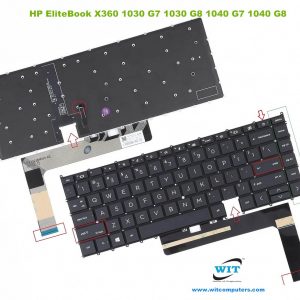
Laptop Keyboard/Keypad for HP EliteBook X360 1040 G7, 1040 G8, 1040 G9, 1040 G10 & EliteBook x360 1030 G7, 1030 G8 1030 G9 series, P/N: SG-A2270-XUA, LK132YK1A00
 EliteBook, HP-Compaq, Laptop Keyboard/Keypad
Laptop Keyboard/Keypad for HP EliteBook X360 1040 G7, 1040 G8, 1040 G9, 1040 G10 & EliteBook x360 1030 G7, 1030 G8 1030 G9 series, P/N: SG-A2270-XUA, LK132YK1A00
Technical Specifications
- Laptop Brand : HP
- Laptop Model : HP EliteBook X360 1040 G7, 1040 G8, 1040 G9, 1040 G10 & EliteBook x360 1030 G7, 1030 G8 1030 G9 series
- Layout: US/UK (Please select the layout options before purchase)
- Language: English (USA/UK)
- Backlit: Yes
- Color: Black/Grey
- Track Pointer : No
- Power Button/Switch: Yes
- Screw: No
- Size : Medium
- Condition: Brand New & Original (QC Pass)
- Warranty: 03 Months/90 Days
- Fitting Charge : Applicable
***Kindly Note……….
Please firstly compare the picture with your keyboard before you place an order. Make sure the laptop model and keyboard is the right one you need. If you are still not sure after a comparison, please contact us.
Suggestion : When you want to buy a laptop keyboard , you must follow these indications:
- Laptop accurate brand, model/series name & number or keyboard P/N
- Color & layout (USA/UK)- especially Enter key
- Fixing type : easy removable or adhesiveness (palmrest based)
- Button shape (especially arrow or corner keys ) or connector cable extent & position
- Screw position, track pointer & backlit availability
- Keyboard Connecting Cable or Ribbon ending cover or cap setting up or down position (especially Asus brand)
- Including Palmrest or not ?
- Keyboard size : Long/Medium/Mini (especially with Num Lock/without Num Lock)
- Function Keys’ length & quantity (especially HP brand)
SKU: WIT12640 -
HP-Compaq, Laptop Keyboard/Keypad, Probook
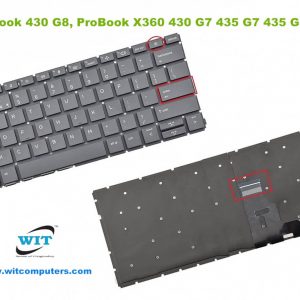
Laptop Keyboard/Keypad for HP ProBook 430 G8, 430-G-8 & ProBook X360 430 G7, 430-G7, 435 G7, 435-G7, 435 G8, 435-G8 series, P/N: HSN-Q27C, Q31C, 57CH0178-L, 002L20A26LHE02, HPM 18C23US-920, L38139-001
 HP-Compaq, Laptop Keyboard/Keypad, Probook
Laptop Keyboard/Keypad for HP ProBook 430 G8, 430-G-8 & ProBook X360 430 G7, 430-G7, 435 G7, 435-G7, 435 G8, 435-G8 series, P/N: HSN-Q27C, Q31C, 57CH0178-L, 002L20A26LHE02, HPM 18C23US-920, L38139-001
Technical Specifications
- Laptop Brand : HP
- Laptop Model : HP ProBook 430 G8, ProBook X360 430 G7 435 G7 435 G8 series
- Layout: US only
- Language: English (USA/UK)
- Backlit: No
- Color: Grey
- Track Pointer : No
- Power Button/Switch: Yes
- Screw: No
- Size : Medium(without NumLock)
- Condition: Brand New & Original (QC Pass)
- Warranty: 03 Months/90 Days
- Fitting Charge : Applicable
***Kindly Note……….
Please firstly compare the picture with your keyboard before you place an order. Make sure the laptop model and keyboard is the right one you need. If you are still not sure after a comparison, please contact us.
Suggestion : When you want to buy a laptop keyboard , you must follow these indications:
- Laptop accurate brand, model/series name & number or keyboard P/N
- Color & layout (USA/UK)- especially Enter key
- Fixing type : easy removable or adhesiveness (palmrest based)
- Button shape (especially arrow or corner keys ) or connector cable extent & position
- Screw position, track pointer & backlit availability
- Keyboard Connecting Cable or Ribbon ending cover or cap setting up or down position (especially Asus brand)
- Including Palmrest or not ?
- Keyboard size : Long/Medium/Mini (especially with Num Lock/without Num Lock)
- Function Keys’ length & quantity (especially HP brand)
SKU: WIT12631 -
HP-Compaq, Laptop Keyboard/Keypad, Spectre
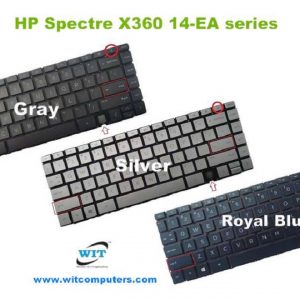
Laptop Keyboard/Keypad for HP Spectre x360 14-ea0023dx 14-ea1023dx 14-ea0047nr 14-ea2035nr 14-ea1008ca series, P/N: M22192-001, M22194-001, M22196-001
 HP-Compaq, Laptop Keyboard/Keypad, Spectre
Laptop Keyboard/Keypad for HP Spectre x360 14-ea0023dx 14-ea1023dx 14-ea0047nr 14-ea2035nr 14-ea1008ca series, P/N: M22192-001, M22194-001, M22196-001
Technical Specifications
- Laptop Brand : HP
- Laptop Model : HP Spectre x360 14-ea0023dx 14-ea1023dx 14-ea0047nr 14-ea2035nr 14-ea1008ca series
- Layout: US only
- Language: English (USA/UK)
- Backlit: Yes
- Color: Gray/Royal Blue/Silver (Please select the color options before purchase)
- Track Pointer : No
- Power Button/Switch: Yes
- Screw: No
- Size : Medium
- Condition: Brand New & Original (QC Pass)
- Warranty: 03 Months (90 Days)
- Fitting Charge : Applicable
***Kindly Note……….
Please firstly compare the picture with your keyboard before you place an order. Make sure the laptop model and keyboard is the right one you need. If you are still not sure after a comparison, please contact us.
Suggestion : When you want to buy a laptop keyboard , you must follow these indications:
- Laptop accurate brand, model/series name & number or keyboard P/N
- Color & layout (USA/UK)- especially Enter key
- Fixing type : easy removable or adhesiveness (palmrest based)
- Button shape (especially arrow or corner keys ) or connector cable extent & position
- Screw position, track pointer & backlit availability
- Keyboard Connecting Cable or Ribbon ending cover or cap setting up or down position (especially Asus brand)
- Including Palmrest or not ?
- Keyboard size : Long/Medium/Mini (especially with Num Lock/without Num Lock)
- Function Keys’ length & quantity (especially HP brand)
SKU: WIT11697 -
HP-Compaq, Laptop Keyboard/Keypad, Spectre
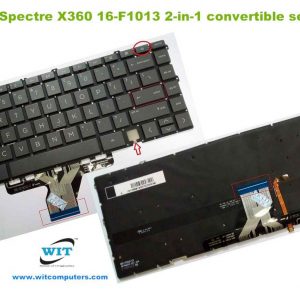
Laptop Keyboard/Keypad for HP Spectre x360 16-f0013dx, 16-f0023dx, 16-f1013dx, 16-f1023dx, 16-f1747nr, 16-f0035nr, 16-f2047nr, 16-f2097nr, 16-f0008ca, 16-f0010ca series, P/N: M85604-B31, M83497-B31, M83497-001, M83498-001
 HP-Compaq, Laptop Keyboard/Keypad, Spectre
Laptop Keyboard/Keypad for HP Spectre x360 16-f0013dx, 16-f0023dx, 16-f1013dx, 16-f1023dx, 16-f1747nr, 16-f0035nr, 16-f2047nr, 16-f2097nr, 16-f0008ca, 16-f0010ca series, P/N: M85604-B31, M83497-B31, M83497-001, M83498-001
Technical Specifications
- Laptop Brand : HP
- Laptop Model : HP Spectre X360 16-F1013 2-in-1 convertible series
- Layout: US only
- Language: English (USA/UK)
- Backlit: Yes
- Color: Gray/Royal Blue/Silver (Please select the color options before purchase)
- Track Pointer : No
- Power Button/Switch: Yes
- Screw: No
- Size : Medium
- Condition: Brand New & Original (QC Pass)
- Warranty: 03 Months (90 Days)
- Fitting Charge : Applicable
***Kindly Note……….
Please firstly compare the picture with your keyboard before you place an order. Make sure the laptop model and keyboard is the right one you need. If you are still not sure after a comparison, please contact us.
Suggestion : When you want to buy a laptop keyboard , you must follow these indications:
- Laptop accurate brand, model/series name & number or keyboard P/N
- Color & layout (USA/UK)- especially Enter key
- Fixing type : easy removable or adhesiveness (palmrest based)
- Button shape (especially arrow or corner keys ) or connector cable extent & position
- Screw position, track pointer & backlit availability
- Keyboard Connecting Cable or Ribbon ending cover or cap setting up or down position (especially Asus brand)
- Including Palmrest or not ?
- Keyboard size : Long/Medium/Mini (especially with Num Lock/without Num Lock)
- Function Keys’ length & quantity (especially HP brand)
SKU: WIT11698